



Connect printers to home routers, office networks, laptops, tablets, and phones.
Printer help without the wait
Get your printer online with live assistance
Get expert help with printer configuration, network connection, driver installation, paper feed issues, print clarity, scanning, and business printer repairs.
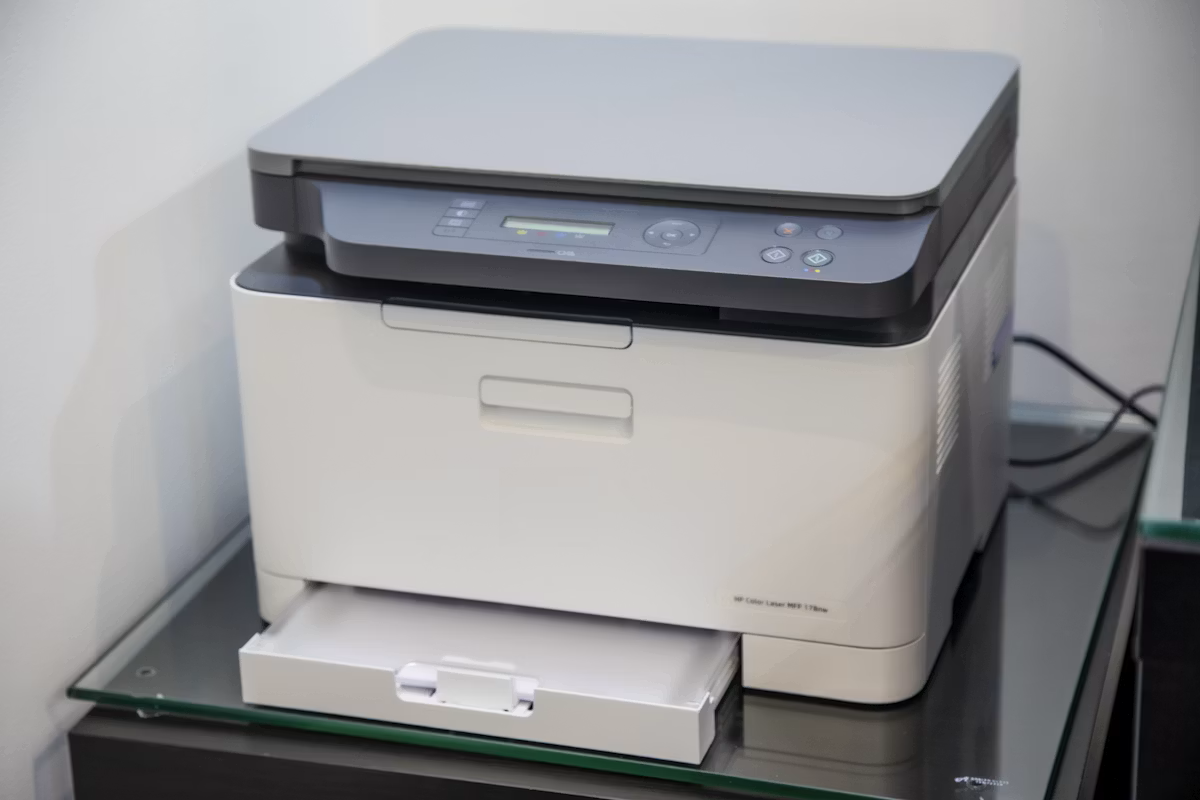
Resolve offline status, spooler failures, driver conflicts, and stuck print queues.
Clear consent, no brand impersonation, and step-by-step guidance you control.
Quick triage
Choose what is happening
How it works
Support in three clear steps
Tell us the problem
Provide your printer model, device, connection type, and any error messages you're seeing.
Get guided repair
Our technician helps you verify settings, install drivers, perform system checks, and run test prints.
Confirm it prints
We verify a successful print or scan before closing the case.
Why Your Printer Says "Offline" (Even When It's On)
It’s one of the most confusing tech problems: your printer is clearly on, but your computer insists it’s “Offline.” This message means your computer has lost its communication link to the printer. Think of it like a dropped phone call—both devices are on, but they can’t hear each other. This communication loss is the core reason you need to troubleshoot network printer issues.
Even when the printer is offline but connected to wifi, the connection can be fragile. A router reset or a weak signal can be enough to sever the link. Your computer tries to send a print job, gets no response, and raises the "Offline" flag.
Another common culprit is a "stuck" print job in your computer's print queue. If one job in this digital waiting line becomes corrupted, it jams the whole system. Your computer sees that nothing is getting through and incorrectly assumes the printer is the problem.
How to Connect Your Printer to Wi-Fi, Step-by-Step
Great choice! Going wireless gives you the freedom to print from almost anywhere in your home. The first task is to introduce your new printer to your home Wi-Fi network, a bit like helping a new friend get connected for the first time. For most people, figuring out how to connect a printer to Wi-Fi is the trickiest part, but we’ll make it simple.
Most modern printers have a tool called a “Wi-Fi Setup Wizard” to handle all the technical work. You’ll find it using the small screen and buttons on the printer itself. Look for a menu item labeled “Settings,” “Network,” or sometimes just a Wi-Fi symbol, and press “OK.” This is the control center for setting up a new wireless printer.
- Select the Wi-Fi Setup Wizard. Your printer will start searching for available networks
- Wait for a list to appear on the screen, then use the arrow buttons to find and select your home's Wi-Fi network name.
- The screen will ask for your password. Carefully type it in. Remember, passwords are case-sensitive, so a capital letter is different from a lowercase one.
- After entering the password, press “OK,” “Done,” or “Connect.”
Your printer will now try to join the network. You’ll know it’s successful when the blinking Wi-Fi light on the printer turns solid (it’s usually blue). Congratulations! Your printer is officially online. Now that the printer is connected, the final step is to teach your computer how to find it and speak its language.
How to Add Your New Printer on a Mac
Good news for Mac users: your computer is exceptionally good at finding and setting up new printers. Unlike other systems that almost always require you to install special software, macOS can often discover your printer on the Wi-Fi network and get it ready to use in just a few clicks. You might not need to download anything at all.
To get your MacBook connected, you just need to point it in the right direction. This quick process will show you how to add a printer on your Mac using the built-in tools.
- Click the Apple menu () in the top-left corner of your screen and choose System Settings. (On older Macs, this is called System Preferences.)
- In the new window, find and click on Printers & Scanners.
- Click the Add Printer, Scanner, or Fax... button.
- Wait a moment for the list to populate. Your new printer should appear automatically—simply select it and click Add.
But what if your Mac can't find the printer in that list? Don’t worry, there’s an easy backup plan. Just as we covered earlier, you can visit your printer manufacturer’s support website and download their specific Mac software. This "translator" software will help your computer and printer connect, ensuring it shows up and is ready for your first print job.